100% cloud · no download

AI. Modular. Minimal.Inventory management for retail and the trades.

Your business in one chat: stock, customers, orders and invoices. Tap, scan or type a sentence, on this phone too.

Next

Why inventory software?

It knows what is in stock, who ordered what and what has been paid. Stock, customers, orders and invoices are linked instead of sitting on notes and in spreadsheets. Nothing slips through any more.

And why GRBX-One?

  1. Run from a chatOne sentence or one tap instead of many forms
  2. All in oneStock, orders, workshop and invoices in one account
  3. Ready at onceIn the browser, no download. Your phone is the scanner
Next

01 / 04Start

The chat app on the phone with the buttons New order, New quote and Scan.The chat app on the phone with the buttons New order, New quote and Scan.
The order form of the inventory system on the phone: customer, item and price filled in from a written sentence.The order form of the inventory system on the phone: customer, item and price filled in from a written sentence.
The chat app on a phone after a scan: article with price, stock and article number.The chat app on a phone after a scan: article with price, stock and article number.
Production in the inventory system on the phone: four pieces, each with its stage, status and the Done button.Production in the inventory system on the phone: four pieces, each with its stage, status and the Done button.

On your phone: scan or tap a field.Next

The editions.

  1. StandardAvailableFor every business, with workshop and chat
  2. JewelleryAvailableFor goldsmiths and jewellers
  3. Further tradesIn developmentYou tell us what is missing, we build it for the whole trade
Next

What is inside.

  1. StockLevels in real time, a warning before you run out
  2. CustomersEach with their history
  3. OrdersDeposit, due date and status on the order
  4. InvoicesGoBD-compliant, as e-invoice, with DATEV export
  5. PurchasingOrdering, goods receipt, delivery notes
  6. ScannerYour phone reads the barcode
Next

Clear terms.

14 daysfree trial, no payment details, no subscription
Testinvented data only, no real customer data
DEservers in Germany, backed up daily, GDPR
What the AI gets to see
  1. You writeAuftrag für Frau Hanna Neu, Wandregal Eiche 120 cm, Abholung Freitag.
  2. The AI seesAuftrag für Frau [NAME-l7sv2acvust5flrlthcwk] [NAME-wwszuas3fnvy3eugza], Wandregal Eiche 120 cm, Abholung Freitag.
  3. You readAuftrag für Hanna Neu angelegt. Abholung Freitag.

AI only if you want it. Everything works without it.

Sign up for free

Already have an account? Sign in

Legal notice · Privacy · Terms of use ·

Please hold the phone upright.

Overview

AI in the chat

You run your business from the chat.

You tap, scan or type a sentence. Create orders, see what is due, call customers: all in the chat of your inventory system, on your phone and on your computer.
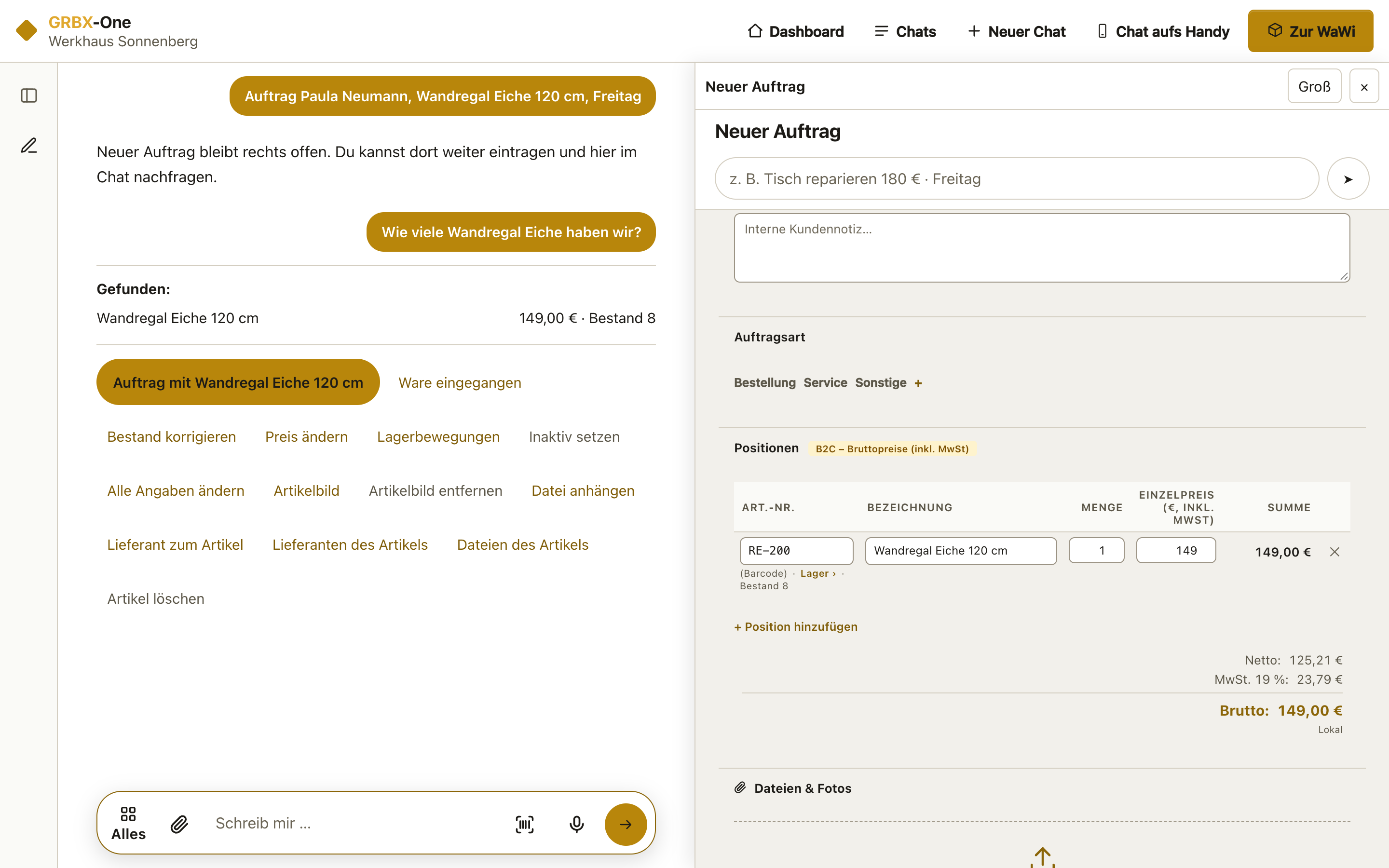
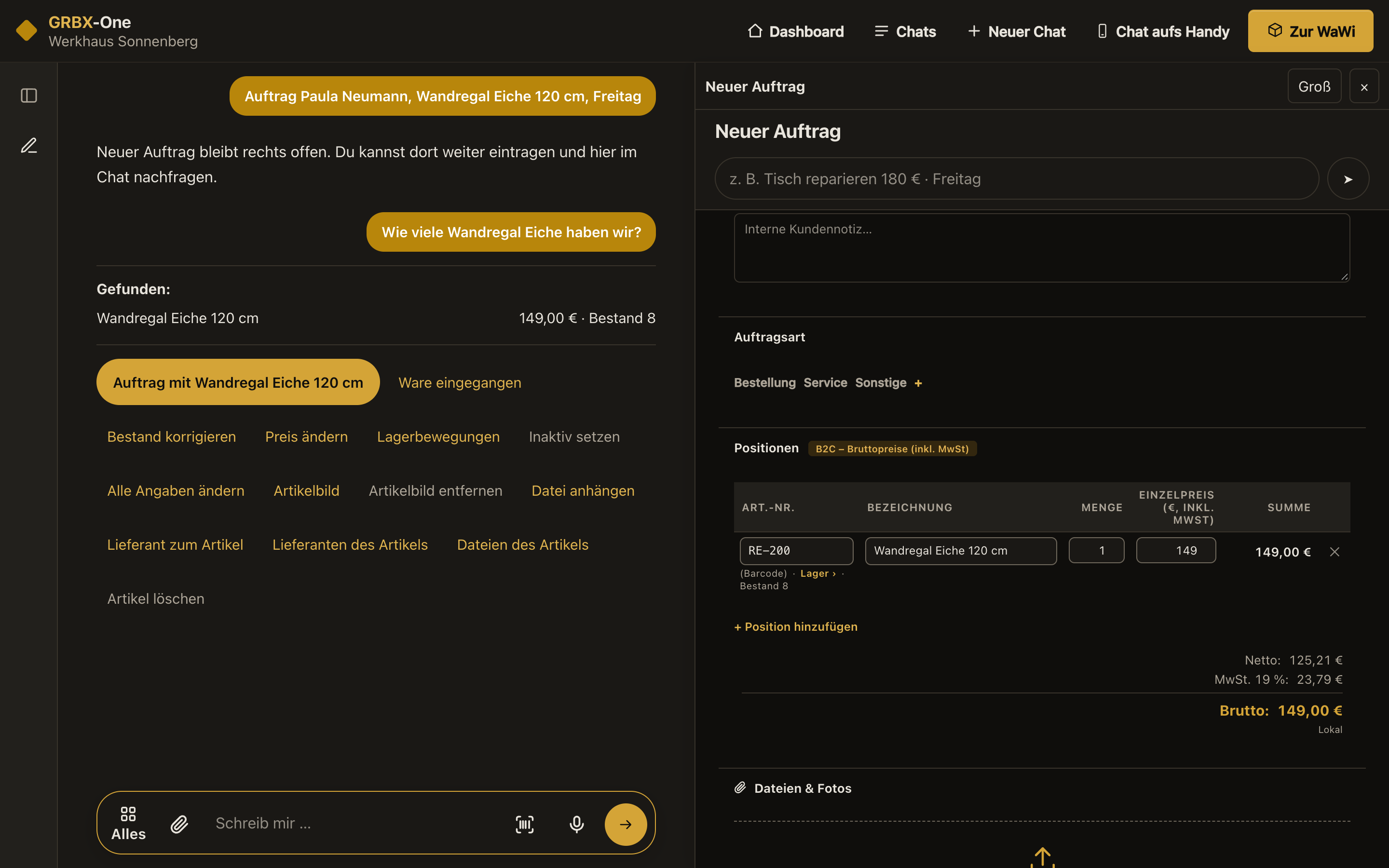
The GRBX-One chat app at the computer: on the left the chat with a stock question, on the right the “New order” form of the inventory system.The GRBX-One chat app at the computer: on the left the chat with a stock question, on the right the “New order” form of the inventory system.
On the left you ask the chat, on the right you work on the order.
The chat app on the phone with the buttons New order, New quote and Scan.The chat app on the phone with the buttons New order, New quote and Scan.
On your phone: scan or tap a field.
The order form of the inventory system on the phone: customer, item and price filled in from a written sentence.The order form of the inventory system on the phone: customer, item and price filled in from a written sentence.
One sentence fills in the order form, one tap creates the order.
The chat app on a phone after a scan: article with price, stock and article number.The chat app on a phone after a scan: article with price, stock and article number.
Barcode scanned: price, stock and the next step.
Production in the inventory system on the phone: four pieces, each with its stage, status and the Done button.Production in the inventory system on the phone: four pieces, each with its stage, status and the Done button.
Production on the phone: a tap on “Done” moves the piece on.

Screenshots from the running application. The business and its data are invented.

Setting up

Open the address. Done.

The chat runs in the browser, without an app from a store.

First, the superuser of your business decides which user may use the AI and up to which level. By default this is allowed for no one.

1

Open the address

On your phone or computer you open your chat address:

https://your-business.grbx-one.com/chat

On your phone you end up there anyway

2

Add it to your home screen

On the iPhone via “Share” and “Add to Home Screen”, on Android via the browser menu. After that the chat starts like an app.

You allow the camera for the scanner once

3

Switch on AI if you want to

In the settings you enter the key of your account with an AI service and confirm the instruction. Without this step the chat works with buttons.

Where processing happens depends on the provider

Every user can use the chat without AI right away. You pay the cost of the AI directly to the service, based on usage.

Encryption

The AI works on your orders without knowing your customers.

Before a sentence leaves your inventory system, it encrypts who is meant. Here is an example. It is in German, because the chat recognises forms of address such as “Frau” and “Herr” in German.

  1. You write

    As usual, with name and phone number.

    Auftrag für Frau Hanna Neu, Wandregal Eiche 120 cm, Abholung Freitag. Rückruf unter 0171 2345678.

  2. Your system encrypts

    Names, e-mail addresses, phone numbers, IBANs and postal addresses become placeholders. Each one carries the value, encrypted with AES-256.

    Auftrag für Frau [NAME-l7sv2acvust5flrlthcwk] [NAME-wwszuas3fnvy3eugza], Wandregal Eiche 120 cm, Abholung Freitag. Rückruf unter [TEL-v3zdhggmiefu735nj4ixr2smullh22pg].

  3. The AI works with placeholders

    It understands the order and asks your system to create it. It does not know the name; it only passes the placeholder on.

    Create order: customer [NAME-l7sv…] [NAME-wwsz…], Wandregal Eiche 120 cm, Friday

  4. Your system fills in the values

    Only when creating the order does it decrypt the placeholders. In the chat you read everything in plain text.

    Order for Hanna Neu created. Pick-up on Friday.

The key stays with you

Every installation has its own key. It never goes to the AI service, and without it a placeholder cannot be read.

Same name, same placeholder

This lets the AI recognise that the same person is meant twice without knowing who it is. An altered placeholder is detected and not executed.

Known customers as a number

Full names from your customer base become the customer number, for example K-42. What your system reports back to the AI also names only the customer number.

What stays readable

Articles, amounts, dates and line texts such as a label text. Also names without a form of address that your system does not know. If in doubt, use the customer number.

What never leaves

Customers who have objected, documents as PDF and purchase prices. Your key for the AI service is stored encrypted and never shown again.

Check what was sent

Below every AI answer, “What the AI saw” shows exactly the text it received. The connection test in the settings sends only a fixed test sentence.

Which service you choose

You enter the key of your own account. These services are available; for each one you first confirm the instruction.

ServiceProcessingWhat you confirm
Mistral AI, European addressEU (data centres in the EU and EFTA)Instruction
Mistral AI without location commitmentLocation not committedInstruction and transfer outside the EU
OpenAI (ChatGPT models)USAInstruction and transfer outside the EU
Claude (Anthropic)USAInstruction and transfer outside the EU
Gemini (Google)USAInstruction and transfer outside the EU
Grok (xAI)USAInstruction and transfer outside the EU
GroqUSAInstruction and transfer outside the EU
Your own service with a chat completions interfacedepends on the serviceInstruction and transfer outside the EU

The GDPR calls every country outside the EU and EEA a third country. A transfer there requires a safeguard under Art. 44 et seq. GDPR, for example the provider’s certification under the EU-US Data Privacy Framework or standard contractual clauses in its data processing agreement. You check with the provider whether one exists.

What it can do

Buttons, scanner, sentences. And a list of what never works.

Asking always works. Working works when the superuser allows it. Some things do not work at all, and that is on purpose.

Ask and look up

Always possible.

  • What is due today
  • How many orders are open
  • Find and call customers
  • Articles with price and stock
  • Scan a barcode and see the article
  • View orders and quotations

This also works entirely without AI: you tap buttons and the chat guides you step by step.

Work

With approval for your user.

  • Create orders and quotations
  • Create customers
  • Add scanned articles to the order
  • With level 2: book stock, archive, edit open documents
  • With level 3, for at most 24 hours: change letterhead, document texts and status names

Never

Not forgotten, but ruled out.

  • Deleting
  • Tax rates, number ranges and bank details
  • Users and permissions
  • Payments
  • Bank access
  • Sending messages to customers
  • Changing invoices
  • Purchase prices

Purchase prices stay with you: your entire costing could be worked out from them.

The full list

In detail

Everything the chat can do.

Every item is implemented in the application. Without AI, the first card applies to every user. What the AI may do on top depends on the level the superuser grants the user.

Without AI, with buttons and sentences

For every user, right away.

  • Scan barcodes with the phone camera in the chat or straight to the desktop, also with a handheld scanner
  • New order and new quote in the form of the inventory system, filled in from a sentence
  • The forms of the inventory system next to the chat at the computer, you drag the width with the mouse
  • What is due today and how many orders are running
  • Where an order stands, found by customer or phone number
  • Find customers and call them straight from the phone
  • Look up items with price and stock
  • Open documents and print them as PDF, for example “print order AU 26-118”
  • New customer, item or supplier as a form
  • Create the invoice for an order
  • Workshop: what is in progress, mark a stage as done, add a note, send the items of an order to the workshop, scan the job ticket
  • Figures: the year's revenue, profit and open invoices, book the bank statement
  • Open the tabs of the system: orders, stock, purchasing, payments, settings
  • End of day: the daily summary with new orders, status changes and what is due tomorrow

The chat itself

On the phone as on the desktop.

  • Chats are saved: several side by side, branch off, rename, delete
  • Every follow-up question is a card with fields, no back and forth; “Change” sits under every preview
  • Suggestion buttons for the next step under every reply
  • On the phone as an app on the home screen, from the desktop to the phone via QR code
  • Documents as a card on the phone, on the desktop a jump into the system
  • If the AI is down or paused, everything carries on with buttons

With AI, level 1: Working

For users the superuser approves.

  • Search and read: orders, quotations, customers, items, suppliers, purchase orders, invoices, payments, incoming invoices
  • Overview, open orders and invoices, items running low, payment status of an order, statistics
  • Create orders and quotations as a card to check; convert a quotation into an order
  • Create customers, suppliers and purchase orders; notes and attachments up to 8 MB on the order
  • Set the status, create a delivery note, documents as PDF
  • With your approval: create an invoice, record a payment, book goods received
  • A message to a customer as a draft to copy; nothing is ever sent
  • Workshop overview, create job tickets and pass them on, book working time

With AI, level 2: Stock, archive and editing

Separate approval with a receipt.

  • Edit open orders and quotations, including prices
  • Edit customers
  • Create and change items, book stock
  • Archive and restore orders
  • Edit job tickets or step them back, send pieces out of house

With AI, level 3: Settings, time-limited

At most 24 hours, then it drops back.

  • Read and change letterhead, document texts and status names
  • The template for job tickets

In the settings

For the superuser.

  • Approval per user and level, default no
  • Costs and benefit: costs per request and month, a monthly limit in euros, time saved per week
  • Privacy mode: the AI sees customers only as a number
  • Pause the AI, test the connection, switch the service

What never works is listed above: deleting, payments, bank access, users and permissions, sending messages, changing invoices, purchase prices.

The limits

Limits that don't depend on trust.

What the AI may do is not up to the AI. Your settings decide, and the technology sticks to them.

Personal data only encrypted

Names, e-mail addresses, telephone numbers, IBAN and postal addresses reach the AI only as encrypted placeholders. Only your inventory system can decrypt them.

Processing location depends on the provider

Where your requests are processed depends on the provider: Mistral AI via its European address in the EU; OpenAI, Claude, Gemini, Grok and Groq in the USA. You can only use a service outside the EU if you expressly confirm the transfer.

The superuser decides

For each user they decide whether the user may use the AI and up to which level. Default: no. If they lower the approval, it applies at once.

Your areas, nothing more

The AI sees only the areas of the user who is typing. A technical limit, not a matter of trust.

Objections are respected

If a customer has objected to disclosure to AI services, nothing about them goes to the AI. The chat then handles it without AI.

Every step logged

Every step of the AI is recorded with time and user.

Final steps only with your approval

The AI cancels or closes an order only after you have approved it in the WaWi yourself. A yes in the chat is not enough.

Volume brake and fraud lock

Messages to the AI and write operations are limited per user. The AI cannot write a new bank account, e-mail or web address into documents.

Everything keeps working without AI

If no AI service is set up or it is currently unreachable, the chat keeps working with buttons and guided steps.

What comes with it

You choose the AI service. And with it the agreement.

Whether and which AI service you set up is your decision. You conclude the data processing agreement under Art. 28 GDPR with its provider, not with GRBX-One.

The AI reads articles, amounts and dates, otherwise it could not work. Names and addresses that the chat does not recognise as such may be transferred in readable form. How long the service keeps requests is governed by your contract with it.

This is also what the privacy policy says.

Mistral, ChatGPT, Claude, Gemini, Grok and Groq are trademarks of their respective owners. GRBX-One is not affiliated with, sponsored or endorsed by any of these companies. We name them only so you know which services you can choose (Third-party trademarks).

Ask first, then set up.

Write to us if you want to know whether your workflow can run from the chat.

Email us